
Tagging Last Hand or Last 3 Hands (While playing)
-
Right‑click the DriveHUD 2 logo (usually top‑center of your poker table HUD).
-
In the context menu, select “Tag Last Hand” to flag the most recent hand, or choose “Tag Last 3 Hands” to tag the most recent trio
-
You’ll now find these hands listed under your Tagged Hands filter for easy review later.
-
Tagging Last Hand or Last 3 Hands (While in database)
-
-
Click on the Last Hand pull down menu located at the center right hand side of your screen.
- Click on Edit tags.
- From this pop-up menu either click on an existing tagged hand filter, or create a new one by clicking on the create new button (see below for more details).
- Select the option to tag last hand or last 3 hands from the option settings for the selected tag hand filter, and click save.
-
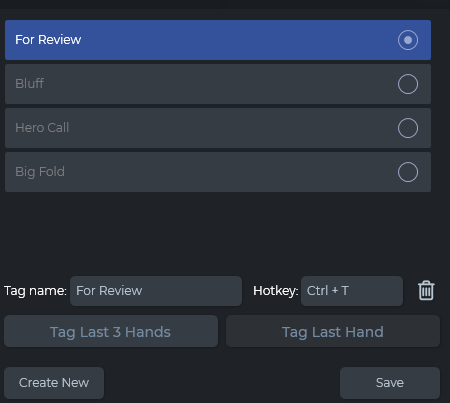
? Creating Custom Hand Tags
To manage or add new tag types:
-
Open the Tagged Hands section in the replayer or session view.
-
Click the drop‑down next to the tag list and choose “Edit Tags”.
-
Click “Create New”, name your custom tag (e.g., “Great Bluff”), then hit Save
You can now assign your personalized tags via the right‑click menu on hands or in‑replayer tagging panel.
Defining a Hotkey for Tagging
DriveHUD supports setting up hotkeys to quickly tag hands during play:
-
Go to Settings (gear icon in main interface).
-
Find the Hotkeys or Shortcuts tab.
-
Locate the “Tag Last 3 Hands” (or similar) option and assign your preferred hotkey combo (e.g., Ctrl+T)
-
By default, Ctrl+T is mapped to tag the last 3 hands.
-
Once set, pressing your shortcut instantly tags the intended number of recent hands for review.
Why This Matters
-
Fast tagging keeps you focused on decision‑making without breaking your flow.
-
Custom tags allow you to categorize specific hand types—like big bluffs, coolers, or hero calls—for easier post-session review.
-
Hotkeys are essential tools for disciplined, real-time note-taking.
Summary Table
| Action | Steps |
|---|---|
| Tag Last 1 or 3 Hands | Right‑click DH logo → choose “Tag Last Hand” or “Last 3 Hands”. |
| Create Custom Tag | Tagged Hands view → drop-down → Edit Tags → Create New → Save. |
| Set Hotkey | Settings → Hotkeys → assign key to “Tag Last 3 Hands” (e.g., Ctrl+T). |
? Pro Tip
Use distinct colors for different custom tags (e.g., green for made hands, red for bluffs). This makes scanning tagged hands during review much faster and more intuitive.